Microsoft Mail connector
The Microsoft Mail connector exposes the Microsoft Graph Mail API as a set of MCP tools (list / read / send / reply / forward / move / delete mail, plus folder navigation) through the PolicyArc gateway. Every tool call carries the caller's own Microsoft OAuth token, so Outlook's per-user permissions and mailbox boundaries apply naturally.
You must have the Microsoft Entra ID identity provider connected first. The connector reuses the same Entra app registration — make sure it has the Microsoft Graph Mail.Read, Mail.ReadWrite, and Mail.Send delegated permissions granted (Step 7 of the Microsoft IDP setup).
Step 1 — Open the Add Connector screen
Open Resources → Add connector (or click Pick a connector from the environment dashboard).
In the Unlocked by your identity providers section, the Microsoft Mail template will show a green border once the Microsoft IDP is connected.
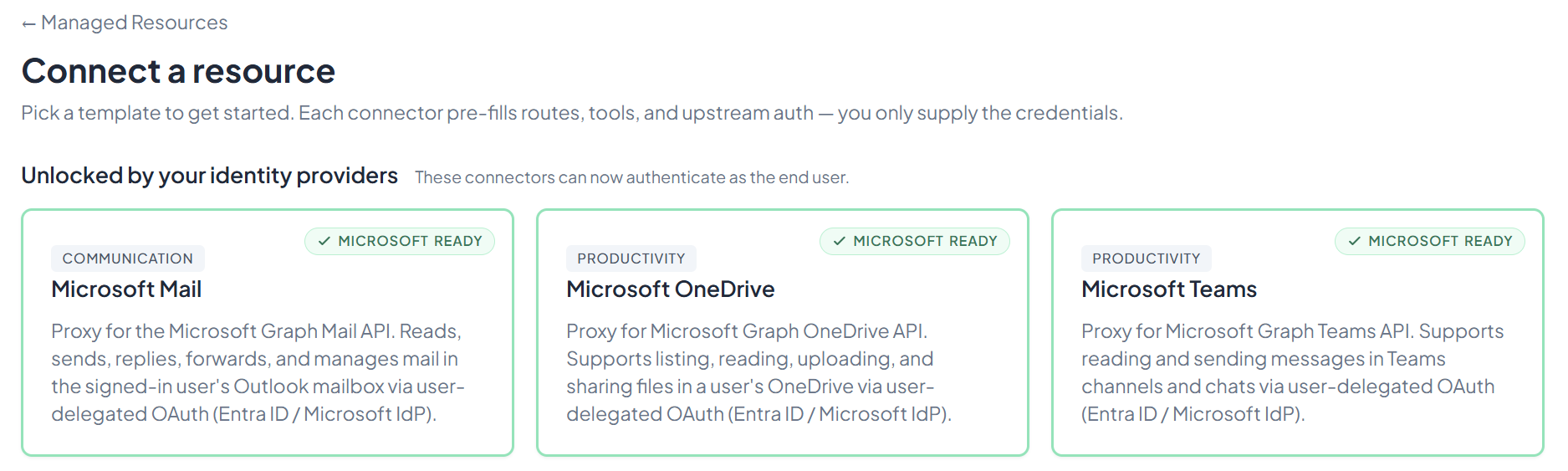
Click Microsoft Mail.
Step 2 — Connect
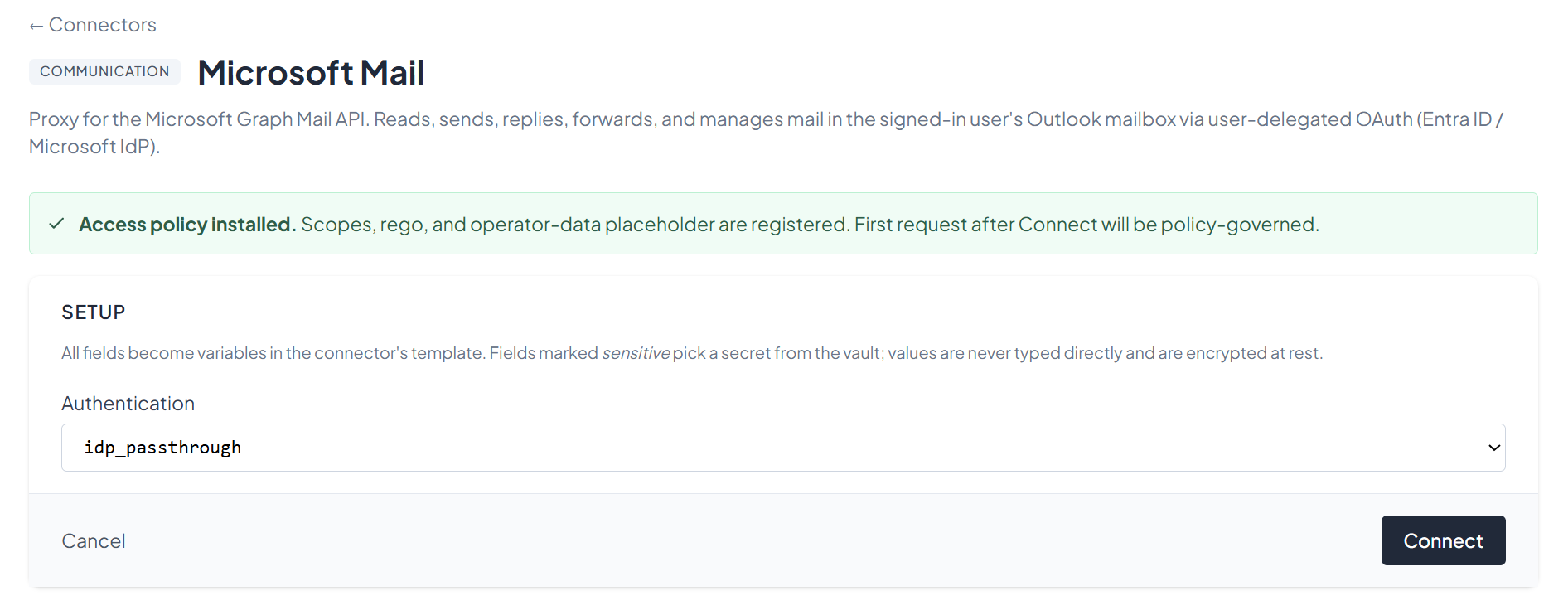
Microsoft Mail's setup form has a single field — the Authentication mode, pre-filled with idp_passthrough. That forwards each caller's own Microsoft OAuth token to Graph; there's no service-account option for this connector (Microsoft Graph requires per-user OAuth for mailbox operations).
Click Connect.
Step 3 — Confirm the connector
After connecting, you'll see the connector's status screen with the 12 available Mail tools (list_folders, list_subfolders, list_messages, get_message, list_attachments, send_mail, create_draft, update_message, delete_message, move_message, reply_message, forward_message). The connector is policy-governed from the first request.
You can return to this view any time from the Resources menu by clicking View on the Microsoft Mail entry.
What's next
The Mail tools are now on your gateway. Pick an MCP client to wire up:
- Recommended: Claude Code — fastest path to verify end-to-end.
- All MCP clients →